Ability to Copy Locations and Tours Across Sites
From Timegate v21.4 onwards, Service users will be able to create tours and service schedules by adding functionality that enables copy and pasting of both locations and tours across multiple sites. The ability to manually create the information site-by-site remains. By giving the user two ways to create locations and tours for a site, a choice can be made about the best way to proceed based on needs. Customers creating similar configurations across multiple sites will reduce their setup and configuration time, ensuring that new sites can go live much faster than previously.
If a site has not had locations set up on it before, the interface works in one way. If a site has locations set up, it works a different way. Both ways are detailed below
Copying site details when location details are not configured
When setting up Locations on a site where none have been previously set up, the user is presented with the option to copy location content (and subsequently tour content) from another site or to create the location information manually. If they wish to copy the information from another site they are then prompted to choose which site from a site list and additionally whether they wish to copy the tour information, otherwise, they are prompted to set up the site manually, in the same way, that they have done historically.
To set up Locations for a Site using the new copy location and tours method:
-
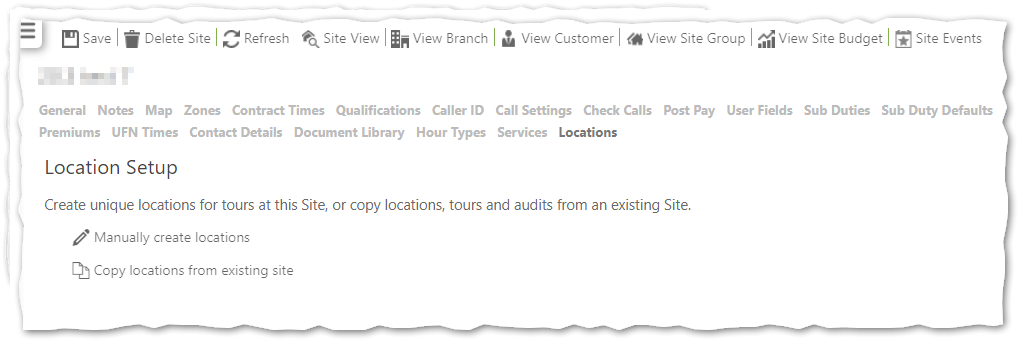
Select Set Up | Sites | Locations for your site of choice. The following screen is displayed:
-
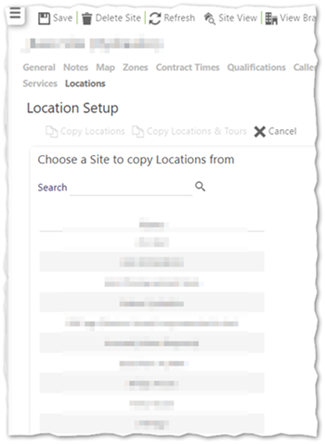
Select Copy locations from existing site. The following is displayed:
-
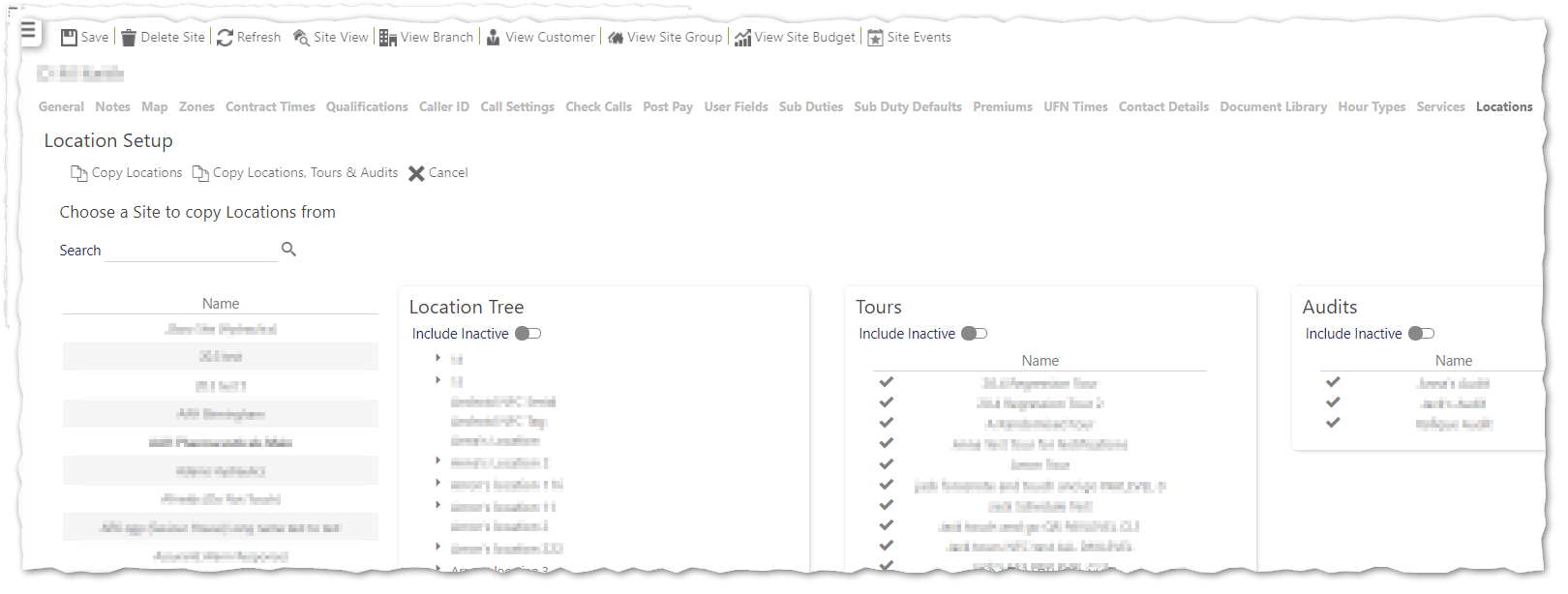
Select the Site to copy Locations from. The Location Tree and Tours will be displayed:
-
Select Copy Locations to only copy locations. Alternatively, choose the Tours that you wish to copy as well, then select Copy Locations & Tours to copy
-
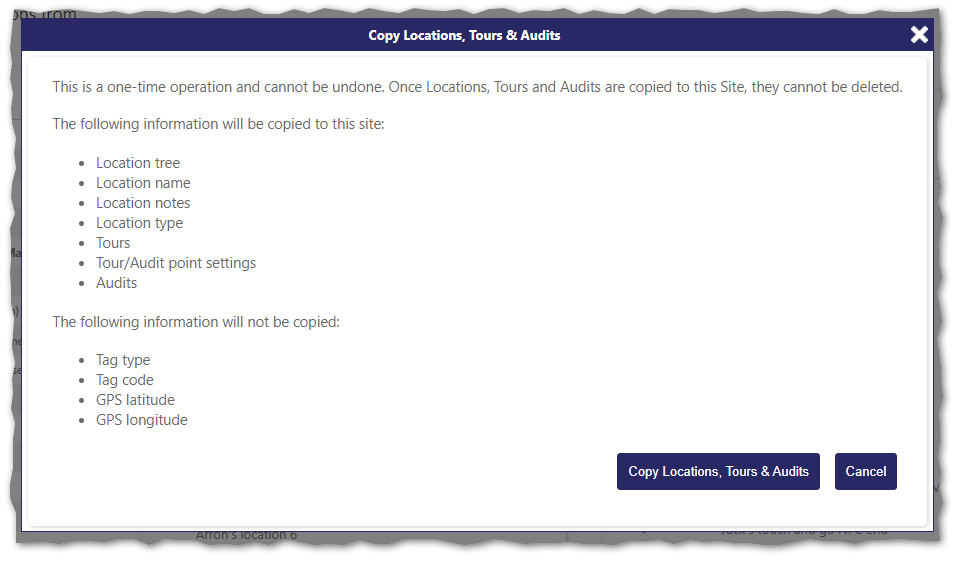
A copy confirmation message is then displayed. Depending on your choice it will be titled either Copy Locations, or as shown in this example when also copying tours, Copy Locations & Tours
-
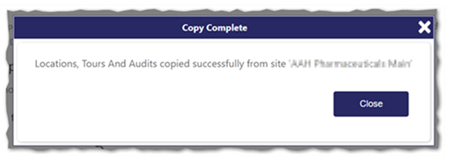
Select Copy Locations or Copy Locations & Tours (depending on what you’re copying). The following Copy Complete confirmation is displayed:
-
Select Close
If you selected Copy Locations, the new Locations are now displayed in the Set Up | Sites | Locations tab under the heading Location Tree.
If you selected Copy Locations & Tours, the new Locations are now displayed in the Set Up | Sites | Locations tab under the heading Location Tree. Additionally, the copied Tours are displayed in the Set Up | Sites | Services tab under the Tours heading
Copying site details when location details have been previously configured
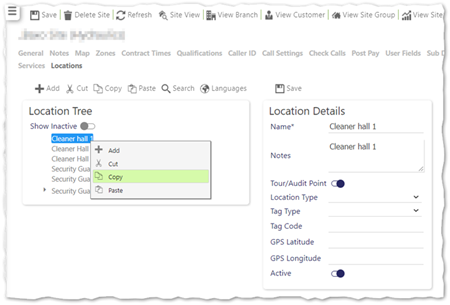
If a site already has locations set up they will not have the option to copy site locations from another site. Instead, they are presented with Cut, Copy and Paste buttons on the Set Up | Sites | Locations tab menu. The options are also found in the right-hand mouse button menu when selecting a location. These can be used to cut/copy locations from one site to another. To do this:
-
Select Set Up | Sites | Locations for the site you wish to copy information from:
-
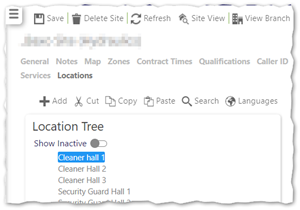
Select the location you wish to cut/copy:
-
Select either Cut or Copy from the menu (or using the right-click menu). This will cut/copy the location of choice to the clipboard:
-
Open the site that you wish to paste the information into
-
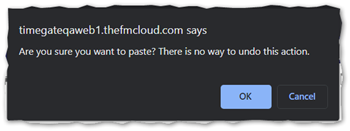
When loaded, select Paste. The following is displayed
-
Select OK to continue
-
The location will now be pasted into the site