View Pay and Bill Times in the Duty Filter
The following 01 min 37 sec clip shows you how to enable and view the Pay (Start and Finish) and Bill (Start and Finish) Times in all Duty Filter views:
 Description of update
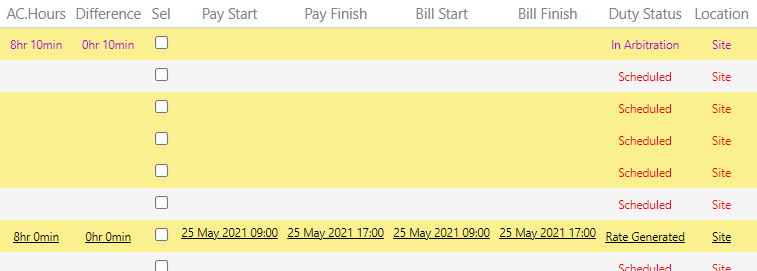
From Timegate 21.3 onwards, it is now possible to view Pay (Start and Finish) and Bill (Start and Finish) Times in all Duty Filter views (not just during Quick Arbitration), making viewing duties requiring approval easier. This is controlled at a user level from within the Duty Filter Configure Gridsettings page.
Before this is can work correctly, the feature needs to be enabled in the Timegate settings (by default it is not enabled).
-
Select Admin | System
-
Select Schedule Settings
-
Scroll down the page to Always show pay and bill columns in Duty Filter and select it, ensuring it is ticked
-
Select Save
Now it's time to set up the view within the Duty Filter Configuration Grid are. To show the values on the screen:
-
Open Plan | Duties
-
Select Configure Grid

-
Ensure that the Pay Start, Pay Finish, Bill Start, and Bill Finish columns are placed within the Visible Columns side of the screen (or select a combination of those that you want to show)
-
Ensure that those same columns are located where you want in the list by dragging them up or down the list. The further they are towards the top of the list, the closer to the left hand side of the screen they will be displayed
-
Select Save to update
Once completed the columns will be displayed on the screen as shown in the example below: